

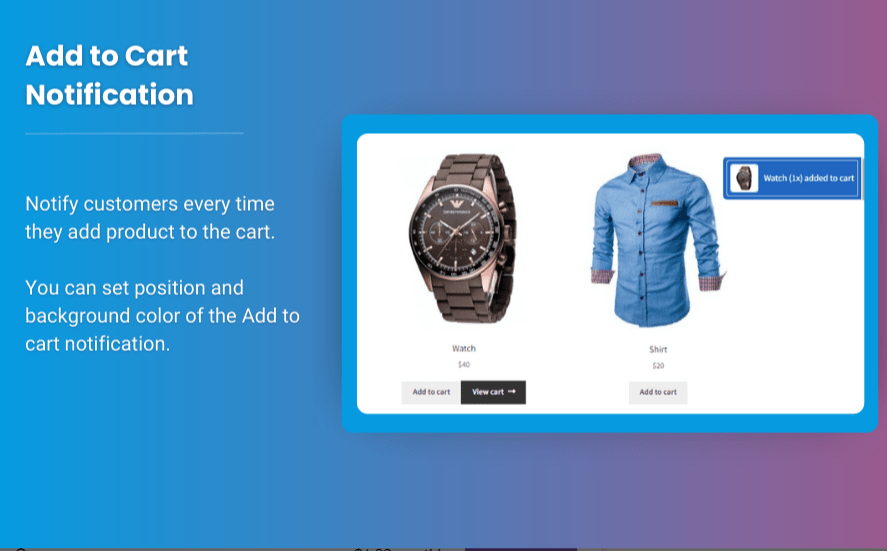
The shopping experience on an e-commerce platform can significantly impact customer satisfaction and conversion rates. One essential feature that can enhance the shopping journey is a sticky add to cart button, which ensures that customers can quickly add products to their cart without having to scroll back to the top or bottom of a page. This functionality is especially useful for stores with long product descriptions or multiple product variations, as it keeps the Add to Cart option accessible at all times.
In this article, we’ll dive into the benefits of a sticky add to cart WooCommerce setup, provide best practices for implementing it, and introduce tools like Extendons that can make the process smooth and efficient.
Why Use a Sticky Add to Cart Button in WooCommerce?
A sticky add to cart button is an essential UI/UX enhancement. Here’s why this feature can benefit your WooCommerce store:
- Enhanced User Experience: By keeping the Add to Cart button visible as customers scroll, you ensure they don’t lose track of how to add an item to their cart.
- Improved Conversion Rates: When the Add to Cart button is readily accessible, customers are more likely to complete purchases.
- Higher Engagement on Mobile: Mobile users, in particular, benefit from sticky elements, as it saves them from needing to scroll back to find the button.
- Reduced Cart Abandonment: A sticky cart button reminds customers of their purchase intent, which can lead to fewer abandoned carts.
Adding this feature to your WooCommerce store can make it easier for customers to buy from you, which in turn boosts your revenue and enhances customer satisfaction.
Benefits of a Mini Cart for WooCommerce
A mini cart for WooCommerce further enhances the shopping experience by displaying a simplified cart view directly on the product or shop page. With a mini cart, customers can see what’s in their cart and update quantities or remove items without leaving the page. This feature complements a sticky add to cart button by:
- Improving Checkout Flow: Customers can proceed to checkout faster with easy access to the mini cart.
- Displaying Cart Contents in Real Time: Users can see added items and total price updates instantly.
- Enhancing User Control: A mini cart allows customers to modify their cart on the spot, increasing their control over the shopping process.
The combination of a sticky add to cart WooCommerce feature and a mini cart provides a more streamlined shopping experience that meets customers’ needs for speed, accessibility, and convenience.
Best Practices for Creating a Sticky Add to Cart Button in WooCommerce
When implementing a sticky add to cart feature, it’s essential to follow best practices to ensure a seamless and effective integration:
1. Position the Sticky Add to Cart Button Carefully
The button should appear where it doesn’t obstruct important content or disrupt the user experience. Generally, a sticky button works well at the top or bottom of the screen, floating in a way that feels natural and unobtrusive.
2. Ensure Compatibility with Mobile Devices
With a large percentage of e-commerce traffic coming from mobile, a sticky add to cart button must be responsive. Make sure the button is the right size for mobile screens and doesn’t overlap critical elements like product images or description areas.
3. Match Your Brand’s Design
Your sticky add to cart button should align with your brand’s visual identity, using colors, fonts, and styles that match your store’s overall look. This cohesion can reinforce brand recognition and enhance the shopping experience.
4. Add a Mini Cart for a Complete Solution
A mini cart for WooCommerce alongside a sticky add to cart button offers customers greater control over their shopping experience. With a mini cart, users can review their items and make changes without leaving the page, which adds convenience and encourages higher order values.
5. Consider Button Animation and Hover Effects
To make the sticky add to cart button more noticeable, consider adding subtle animations or hover effects. For example, you could use a color change on hover or a slight “bounce” animation when scrolling, which can attract users’ attention and increase interaction.
How to Create a Sticky Add to Cart Button in WooCommerce
WooCommerce does not provide a built-in sticky add to cart feature, but plugins like Extendons make it easy to implement. Here’s how you can create a sticky add to cart button on your WooCommerce store with Extendons’ tools and similar plugins:
1. Choose the Right Plugin
Extendons offers a dedicated Sticky Add to Cart for WooCommerce plugin, which provides advanced features like customization options, compatibility with mobile devices, and integration with other WooCommerce functionalities.
2. Install and Activate the Plugin
Once you’ve chosen a plugin, install and activate it on your WooCommerce site. Most plugins offer straightforward setup processes. With Extendons’ plugin, you’ll find a user-friendly interface and plenty of customization options.
3. Customize the Button’s Appearance
After activation, you can personalize the button’s color, text, and positioning to match your brand’s design. Extendons allows you to configure the button to stay at the top or bottom of the page, and you can choose a color scheme that aligns with your store’s look.
4. Enable Mini Cart Functionality
If the plugin you’ve chosen also offers a mini cart feature, enable it in the settings. With Extendons, you can activate the mini cart display, allowing customers to view and modify their cart without leaving the product page.
5. Test on Desktop and Mobile
Before going live, test your sticky add to cart button and mini cart on various devices. This step ensures that the button and cart display correctly on different screen sizes and function as expected.
Extendons: A Trusted Solution for WooCommerce Add to Cart Customization
Extendons offers plugins that cater specifically to WooCommerce users, including sticky add to cart WooCommerce features and mini cart enhancements. Here’s why Extendons is a recommended solution:
- Ease of Use: Extendons plugins are user-friendly and don’t require technical expertise to implement.
- Responsive Design: Extendons plugins ensure that sticky add to cart buttons and mini carts work seamlessly across all devices, from desktop to mobile.
- Customization Options: You can tailor the button’s appearance, animation effects, and more, allowing for a unique and brand-consistent design.
- Reliable Support: Extendons provides customer support to help you troubleshoot any issues and make the most of their plugins.
Using Extendons’ solutions, you can create a seamless, professional shopping experience that keeps customers engaged and increases the likelihood of completed purchases.
Benefits of a Sticky Add to Cart Button and Mini Cart Combination
Combining a sticky add to cart button with a mini cart maximizes customer convenience and creates a more engaging user experience. Some of the key benefits of this combination include:
- Easy Access to Cart Information: With a mini cart visible, customers can quickly review their items, quantities, and total costs without navigating away from the page.
- Quick Cart Modifications: A mini cart allows users to update their cart items directly, making it easier to adjust purchases before checkout.
- Increased Impulse Purchases: When customers see their cart contents alongside a sticky add to cart button, they’re more likely to complete their purchase, especially with the convenience of one-click access.
Check out the useful insight about the Customize my Account page to enhance your store’s shopping experience!
FAQs
1. What is a sticky add to cart button?
A sticky add to cart button is a fixed-position button that remains visible as a customer scrolls down a product page. This feature ensures that customers can add items to their cart without having to scroll back up.
2. Why should I use a sticky add to cart button in WooCommerce?
Adding a sticky add to cart button makes it easier for customers to add items to their cart, which improves the user experience and can lead to higher conversion rates.
3. How does a mini cart improve the shopping experience?
A mini cart displays a simplified cart view on the product page, allowing customers to see their cart contents, adjust quantities, and proceed to checkout without leaving the current page. This feature is convenient and can help reduce cart abandonment.
4. How can I create a sticky add to cart button in WooCommerce?
You can create a sticky add to cart button by using plugins like Extendons’ Sticky Add to Cart for WooCommerce, which provides options for customization, positioning, and mini cart integration.
5. Can I customize the appearance of the sticky add to cart button?
Yes, with the right plugin, you can customize the button’s color, text, position, and even add animation effects to match your store’s branding.
6. Is Extendons’ Sticky Add to Cart plugin mobile-friendly?
Yes, Extendons’ plugin is designed to work on both desktop and mobile devices, providing a seamless experience across all screen sizes.
By implementing a sticky add to cart WooCommerce feature and integrating a mini cart for WooCommerce, you’re setting up a streamlined, user-friendly shopping experience. A sticky add to cart button keeps essential actions at customers’ fingertips, while a mini cart allows for quick cart reviews and adjustments, ultimately enhancing the customer journey and improving conversion rates.